Pages

Sunday, March 30, 2014

How do I change my username or password?


How do I change my username or password?

Below are the steps on how to change your username or password in major operating systems, online services, and other locations. Keep in mind that unless you're theadministrator or root of the system you, will need to know the password of the account before changing it into something else. Click on one of the below links to scroll down automatically to steps on how to change the username or password

Windows Vista and 7 users

Change password
  1. Open Control Panel.
  2. Click Add or remove user accounts.
  3. Click the account you wish to change.
  4. Click Change the password
Change username
  1. Open Control Panel.
  2. Click Add or remove user accounts.
  3. Click the account you wish to change.
  4. Click Change the account name

Windows XP users

Change password
  1. Open Control Panel.
  2. Double-click the Users Accounts icon.
  3. Select the account you wish to change.
  4. Select the option "Change my name" to change your username or "Create a password" or "Change my password" to change your password.
Note: Windows XP Home users can only change the Administrator password throughSafe Mode.
Change username
  1. Open Control Panel.
  2. Double-click the Users Accounts icon.
  3. Select the account you wish to change.
  4. Click "Change My Name"
  5. Enter the new name you wish to use and click the Change Name button.

Windows 2000 users

Change password
Microsoft Windows 2000 users can change their username by pressing CTRL + ALT + DEL while in Windows to open the Windows Security window. From this window click the "Change Password" button.
Enter your old password and the new password you wish to use.
Change username
In order to change the username of an account on Windows XP you will need to have an account with Administrator rights. If you're logged in as Administrator or have an account with Administrator rights, follow the below steps.
  1. Open Control Panel.
  2. Double-click the Users and Password icon.
  3. Make sure "Users must enter a user and password to use this computer" is checked.
  4. Highlight the account you wish to change the username for and click the Properties button.
  5. Within the Properties you'll be able to change the User name.

Windows 95, 98, and ME users

Change password
To change your password or password settings in Windows 95, 98, or ME, follow the below steps.
  1. Open Control Panel.
  2. Double-click the Passwords icon.
  3. In the Password Properties window, click the Change Windows Password button.
Note: The Windows password can also be changed through the Users icon in Control Panel.
Change username
You can change the user settings in Windows 95/98 through the Users icon in Control Panel. However, this does not allow you to change the actual username. If you need to change the username, we suggest you create a copy of your existing username and use the new user name. Below are the steps to do this.
  1. Open Control Panel.
  2. Double-click the Users icon.
  3. Highlight the user you wish to make a copy of and click the Make a copy button.
  4. Follow the wizard in creating a new user account.

Linux and Unix and most variants

Change password
Almost all Linux and Unix and variants have access to the passwd command. Enter this command at the prompt to change your password. You'll need to know the current password before being able to change the password to a new password.
See the passwd command page for additional information about this command.
Change username
In order to change the username you will need to have root or super-user access.
To change the username of an account, use the vipw command. See the vipw command page for additional information about this command.
To change the user settings, use the chfn command. See the chfn command page for additional information about this command.

BIOS passwords

Change password
The system password that appears immediately after turning on the computer and CMOS or BIOS password are both changed through the CMOS Setup.
Change username
A computer BIOS does not have a username.

Internet username and passwords

Changing your Internet username or password is really dependent on how your Internet Service Provider is setup and what their policy is for changing the username and password. Often, most ISPs will allow you to change your password whenever you need to; however, they will not allow you to change your account name.
Because every Internet Service Provider (ISP) and webhost is different, we suggest you contact the company for additional help with changing your username or password.

Online forums and accounts

Like the Computer Hope forums, most forums allow a user to change their password only through the profile or account settings. However, most companies will not allow you to change your username; usually, you must create new account to do this. If you need additional service with changing your username or password on another website, we suggest you contact the company or webmaster in control of that website

Saturday, March 29, 2014

Slow computer? 10 ways to make it run faster

Slow computer? 10 ways to make it run faster

Many people will be planning on upgrading their laptop or PC this Christmas, but here are 10 ways of avoiding a costly new purchase

Instead of consigning your old computer to the dump, here are 10 ways to make it run faster 
1) Uninstall unused programs
New PCs come with a whole load of programs you will never use, and you probably don’t even know they exist.
Some programs even run background processes when you load your computer, even though you are not using them.
To remove all these pointless programs, open the Control Panel’s Programs and Features page, and have a trawl through the list of installed software. Uninstall those that you do not need, while being careful to leave programs your computer’s hardware needs (typically their publisher will be listed as the PC maker’s name or as Microsoft).
If you are still unsure about which programs to use, try a third-party called such as PC Decrapifier – it’s free for non-commercial use – which should tell you which programs you don’t want or need.
2) Automatically delete temporary files
Temporary files amass on your computer through everyday tasks and can remain on your hard disk, slowing the computer down. Getting rid of these files, including your internet history and cookies, should give you a larger amount of hard disk space, speeding up your PC.
To do this, open “My Computer”, and select your local drive (usually C:\). Select the “Windows” folder and then open the folder titled “Temp”.

Use your mouse to right-click on the folder, and in the “View” options, choose “Details”. Once this is done, select all the files that are older than the current date and press the delete key. Then go to the Recycle Bin on your desktop and empty it.
3) Install a solid state drive
Hard drives are the biggest cause of slow speeds and especially slow startup speeds on your PC.
While they are not cheap, installing a solid state drive, which have extremely fast read times, can speed up your startup considerably.
4) More hard drive storage
Even if you make sure to regularly clean out all your temporarily files, if your hard drive becomes 85 per cent full, it’s going to affect your computer’s speed.
If you regularly film videos or use your PC for recording television, then you will want as big a hard drive as you can get, upwards of 1TB in size.
Here is a handy video on how to install your new hard drive.

5) Prevent unnecessary start ups
This method will primarily affect how long it takes for your laptop or PC to startup, but often many of the programs which are launched on startup continue to run and use up your computer’s memory.
To do this, click “Start” and “Run”. In “Run”, type “msconfig” and then press enter. You should then see the “Startup” tab, with all the programs ticked the ones which will load upon your computer starting up. There is a good chance the list will contain a number of programs you might not have realised were running on your computer during startup, or even at all.

You can either manually deselect those which you do not want to load, or click “Disable All” and then select those you want to run, such as particularly important programs like anti-virus software.
Another trick can be removing all the unnecessary fonts Windows loads. Windows 7 loads more than 200 fonts on startup which can slow down the speed at which it boots up. Go to the Start Menu’s search box, search for the Fonts folder and check off all the fonts you don’t need, and click the “Hide” button in the toolbar.

6) More RAM
RAM, which stands for Random Access Memory, is the temporary storage memory used by your computer and is in use when tasks are being executed by different programs. Therefore, the more programs you use, the more RAM you need, and the slower your computer will be if you don’t have enough.
A clear indicator of not having enough RAM is if your computer slows down every time you try and process large files, or it freezes will carrying out several different actions at once.
You can either add more RAM with an extra memory stick or two, or buy getting completely new memory if all the slots are taken. There is theoretically no upper limit on the amount of RAM that you can have with a 64-bit operating system, but in practical terms 4GB is more than enough for most people.
For a handy guide on what kind of RAM you need, look here, or watch the video below on how it should be installed.
You can also find out how many RAM your computer is using in the Task Manager’s Performance tab (hit Ctrl-Shift-Esc to bring this up).
7) Run a disk defragment
Sounds complicated, but this is basically a way of reconfiguring how your hard drive stores information for maximum efficiency.
Go to “My Computer”, right-click on the hard drive and select “Properties”. Under the “Tools” tab there should be an option to “Defragment Now”.

8) Run disk clean up
Windows also includes a built-in disk de-cluttering tool called “Disk Cleanup”.
It searches through the system for unnecessary large files such as temporary Internet files, program installers, and so on.
Open Disk Cleanup by clicking “Start > All Programs > Accessories > System Tools > Disk Cleanup”.
9) Give your computer a static IP
Another trick for speeding up your computer loading time is to give your computer a static IP address that never changes.
When you startup your computer, it spends a decent amount of time asking the network for an IP address. Not only does having a static IP address make the network easier to manage (particularly if you have several devices using the same network), but it also cuts time off your startup.
To do this, visit the “Network and Sharing Center”, and select “Change adapter settings”. Right click on your local adapter and select “Properties”. You then need to highlight what should be titled “Internet Protocoal Version 4 (TCP/IPv4), and click the properties button.
In “Use the following IP address” enter in the correct IP, Subnet mask, and Default gateway which correspond with your network setup.
Make sure to check “Validate settings upon exit” so Windows can find any problems with the addresses you entered.
To find out what your IP, subnet mask and default gateway are, go to “Start” and then “Run”, and type in “cmd”. At the command prompt, type “IPCONFIG/All” and it should come up, as shown below.

10) Hoovering out the dust
Again, this sounds a tad radical, but dust is your computer’s enemy. It can impede airflow, which is vital to keeping your computer’s temperature down, and if your computer is overheating, it is likely it will slow down its performance to cope.
(Incidentally, overheating will also make it impossible to use programs such as Skype, because for the person on the other end of the conversation it constantly sounds like an aeroplane is taking off).
If you have a desktop or a laptop, you can take off the computer’s exterior and use a hoover on a low power setting to try and remove some of the dust. Make sure your computer has been switched off for at least 30 minutes and that all cables are disconnected before starting your clean.
Use your hoover with a small attachment, and try either the reverse setting to blow air into the vents and push the dust out, or use its standard suction to try and extract some of the dust.


Bootable usb pendrive using cmd

Bootable usb pendrive using cmd

Creating a usb pendrive using command prompt is not hard, it is one of the most common ways to create a bootable usb.
      This method does not work if your operating sistem is windows xp or windows 8 , you cannot select the primary partition in comand prompt.
       You just need to follow these simple steps:
  1. First step is to obtain the windows files from somewhere and save them to a folder in your pc. You can rip a windows dvd , or if you have the iso image file you can open it with magic disc or daemon tools or even winrar , and you need to copy the whole content to a folder anywhere in your pc , you just need to make sure you know where it is located.
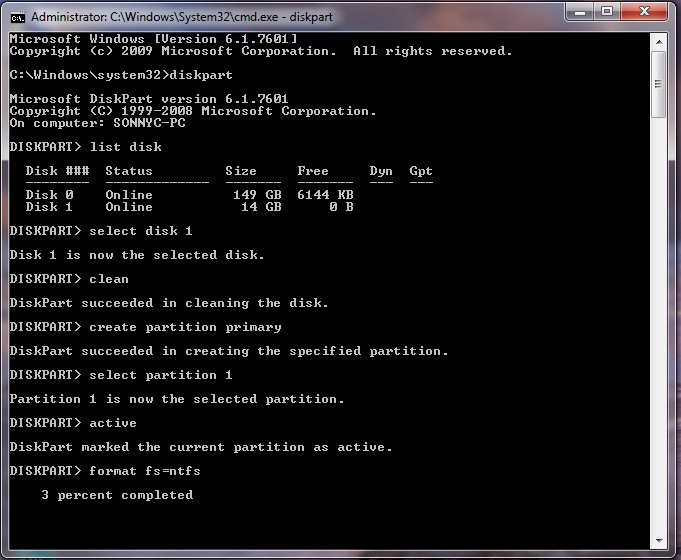
  2.  Make sure your usb stick is inserted, go to start search cmd , right click the  file and select run as administrator. The command prompt will appear, now you need to write the following comands:
  3. diskpart→list disk→select disk 1(chose  the usb device, you will recognize it by its size)→clean(this will erase the usb)→create partition primary→select partition 
 1→active→format fs=ntfs(this will format the usb drive and will take 10-15 minutes)→Untitled 5 
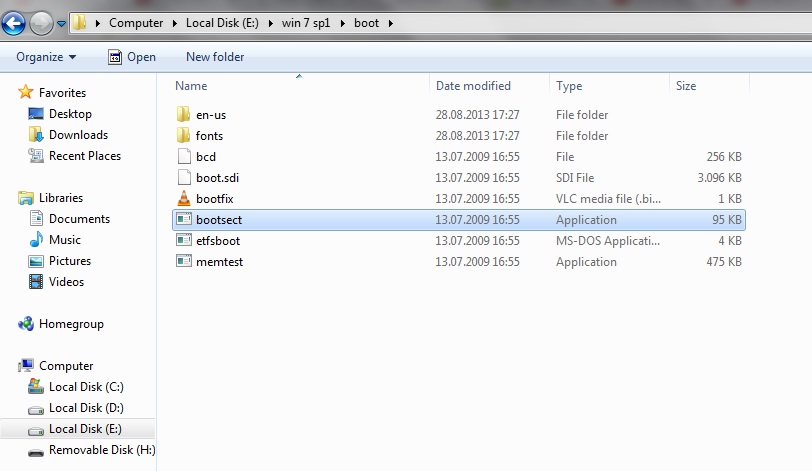
  1. Now you have to write the path to the executable file in your windows saved folder , make sure that in your windows folder you have the boot folder with the bootsect executable file.
  2.  
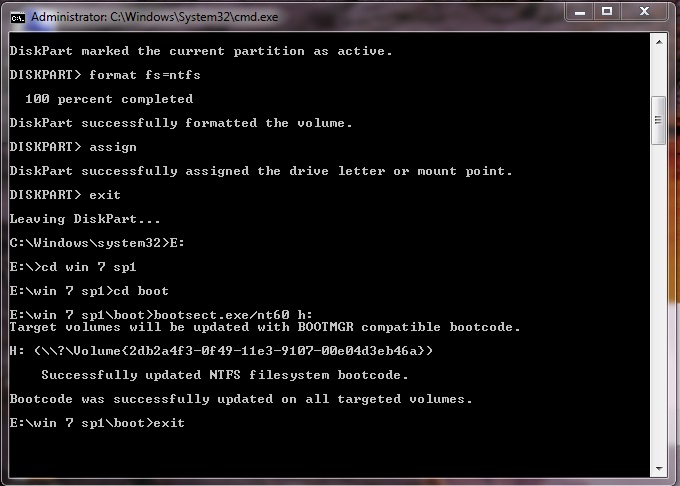
  3. After the format is done you have to continue writting  in command promt :  →assign(now you will notice that the usb drive changed its letter to (H): or (G))→exit(this command will exit the disk part function)
  4. sure that in your windows folder you have the boot folder with the bootsect executable file.Untitled 8
  5. In my case the command goes like this:   E:→cd win 7 sp1→
           →cd boot→bootsect.exe/nt60 h:(h is the letter of the usb drive ,this comand will update the boot core)→exit (this will exit command prompt).
Untitled 6
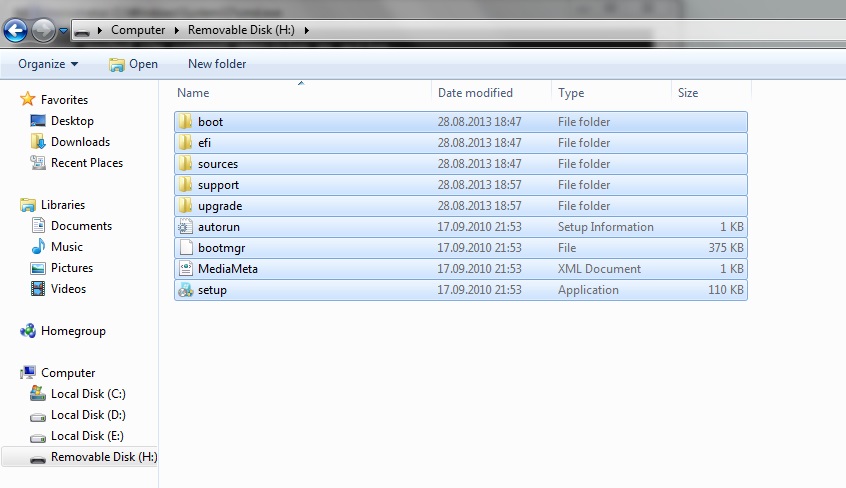
  1. Now you have to copy all the files in the windows folder to your usb drive. Untitled 7
  2. ALL DONE. You can now restart your pc and boot from the usb hard drive.

Friday, March 28, 2014

How to Run Android Apps on Your Windows or Mac Machine

How to Run Android Apps on Your Windows or Mac Machine

Android is not just for Android devices any more. Thanks to the BlueStacks App Player, you can run your favorite Android apps on PCs running Windows XP, Vista or 7. You can run them on a PC or even a tablet running Windows 8. If you've got a Mac, BlueStacks will let you run Android apps on it as well. This nifty player won Best of CES last year -- and it's free.

Webinar: The New PCI 3.0 Standard
Learn the steps to take to get your company ready for PCI DSS 3.0 changes coming January 2015. We cover all of the details you need to know as we head to the deadline to complete and pass your PCI DSS 3.0 audit. View the PCI Webinar Series Now.
Have you got some favorite smartphone apps? Not convinced by Microsoft's new Windows app selection? Itching to see some Android action on your MacBook Pro? Don't worry, just install an Android emulator on your Windows or Mac machine and run all of the Android apps that you've grown to love.
A version is even available for Windows 8 Surface tablets. Load up to 750,000 Android apps, including games, SMS text messaging, and media apps.
The free product that lets you do this is BlueStacks App Player, and it claims more than 5 million downloads.
Here's how to go about loading and running the BlueStacks emulator:
Installation and Use
Step 1: Browse to the BlueStacks Web page on a desktop computer or laptop and click on the download button for your operating system. Choose between XP, Vista and Windows 7; Windows 8; or Mac.
Follow the usual steps for installing software, opening the .exe file. Follow the prompts to allow installation and then accept the terms of the license agreement by clicking on the Welcome to BlueStacks' Continue button.
Step 2: Verify that App Store Access and App Notification check boxes are enabled on the following screen and then click Install. Allow the BlueStacks application to load.
Step 3: Click on the My Apps tile and then on the App Search button.
Search for an app that you use regularly on your smartphone or tablet. For example, I searched for Falcon Pro, a robust, paid-for Twitter client I like. Allow the in-Bluestacks search to complete and then click on the Install button adjacent to the search result.
Tip: The app doesn't install from this search. This search just tells you which store has the app you want.
Step 4: Choose an app store from the selection. I chose the Google native Play store, but there will be others listed, including Amazon.
Tip: Choose the store that you normally use on your device. It will be cheaper to migrate an app that you've already paid for.
Step 5: Add your account details if prompted. If you already have a Google account, add it here. Allow any sync to take place and then select Finish Setup. Click on any terms and conditions check boxes and then press Continue.
Step 6: Perform a second search for the app that you want to install. Allow the search to take place and then choose Accept and Download. Allow the app to install and then open the app. This search is from within the store that you may be familiar with, like Play.
Tip: Use the on-screen keyboard that pops up rather than the PC's physical keyboard if you run into keyboard mapping issues when communicating with the app.

Syncing With Your Phone or Tablet

BlueStacks includes a sync function called "1-Click Sync." This function lets you sync one way between the emulator and device.
Step 1: Click or touch the 1-Click Sync tile and then enter your Google account details in the text boxes.
Step 2: Sign in and choose the device or devices you'd like to sync with. Then from within BlueStacks, choose the app you'd like to install on your device, and click or touch the sync button on the app tile. The button looks like a smartphone screen with an arrow icon.
Step 3: Take a look at the device, and you'll see the app loading.
Tip: Ensure the device is connected to the Internet and logged into the same Google account you used in Step 1.

Pushing Apps to BlueStacks

BlueStacks also includes push functionality for getting apps from device to PC.
Step 1: Perform a search for BlueStacks Cloud Connect from within the Play store and install it to your device.
Tip: Do this independently of the BlueStacks emulator.
Step 2: Click on the Settings button within BlueStacks and choose Cloud Connect. Follow the prompts and enter the requested email and phone information. Make a note of the PIN and press Close
Step 3: Enter the PIN in BlueStacks Cloud Connect on the device and log in. Choose the apps you'd like to push to the emulator and press Sync.
Tip: Follow the texted-to prompts on your phone if you'd like to set up SMS connectivity.

Want to Ask a Tech Question?

Is there a piece of tech you'd like to know how to operate properly? Is there a gadget that's got you confounded? Please send your tech questions to me, and I'll try to answer as many as possible in this column.
And use the Talkback feature below to add your comments!

Patrick Nelson has been a professional writer since 1992. He was editor and publisher of the music industry trade publication Producer Report and has written for a number of technology blogs. Nelson studied design at Hornsey Art School and wrote the cult-classic novel Sprawlism. His introduction to technology was as a nomadic talent scout in the eighties, where regular scrabbling around under hotel room beds was necessary to connect modems with alligator clips to hotel telephone wiring to get a fax out. He tasted down and dirty technology, and never looked back.

Thursday, March 27, 2014

       Making Ethernet Cables

Ethernet Cable
HOW TO MAKE AN ETHERNET CABLE
Purchasing fully made Ethernet cables from the store can be quite expensive.  It is far easier to simply buy a box of bulk Category 5e Ethernet cable and then attach your own RJ-45 connectors to the cut ends of your preferred cable length.


Bulk Ethernet Cable - Category 5e or CAT5e

(You may also use Category 6 or CAT6 cabling which has higher performance specifications and is about 20% more expensive than CAT5.)
Bulk RJ45 Crimpable Connectors for CAT-5e
or
Bulk RJ45 Crimpable Connectors for CAT-6


RJ-45 Crimping tool
There are two kinds of Ethernet cables you can make, Straight Through and Crossover.

STRAIGHT THROUGH Ethernet cables are the standard cable used for almost all purposes. It is highly recommend you duplicate the color order as shown on the left. Note how the green pair is not side-by-side as are all the other pairs. This configuration allows for longer wire runs.


CROSSOVER CABLES - The purpose of a Crossover Ethernet cable is to directly connect one computer to another computer (or device) without going through a router, switch or hub.
Here's how to make a standard cable:

cut into the plastic sheath about 1 inch (2.5 cm) from the end of the cut cable. The crimping tool has a razor blade that will do the trick with practice.
Unwind and pair the similar colors.
Pinch the wires between your fingers and straighten them out as shown. The color order is important to get correct.
Use scissors to make a straight cut across the wires 1/2 Inch (1.3 cm) from the cut sleeve to the end of the wires.
Push the wires into the connector. Note the position of the blue plastic shielding. Also note how the wires go all the way to the end.
   
A view from the top. All the wires are all the way in. There are no short wires.
   
WRONG WAY - Note how the blue plastic sleeve is not inside the connector where it can be locked into place. The wires are too long. The wires should extend only 1/2 inch from the blue cut sleeve.
   
WRONG WAY - Note how the cables do not go all the way to the end of the connector.
Criming Ethernet
CRIMPING THE CABLE ... carefully place the connector into the Ethernet Crimper and cinch down on the handles tightly. The copper splicing tabs on the connector will pierce into each of the eight wires. There is also a locking tab that holds the blue plastic sleeve in place for a tight compression fit. When you remove the cable from the crimper, that end is ready to use.
Ethernet Repeat Steps
For a standard "Straight Through" cable, repeat all steps and wire color order on the other end of cable. For a cross-over cable, the other end will have a different color order as shown by the crossover picture above.
Ethernet Cable Tester
Make sure to test the cables before installing them. An inexpensive Ethernet cable tester does this quite well.
NOTE - The maximum cable length of CAT-5, CAT-5e or CAT-6 Ethernet cable is 328 feet or 100 meters
Did this page help you? Email iphtkharalam@gmail.com