Pages

Friday, October 7, 2016

10 Quick Ways to Speed Up a Slow Windows PC

10 Quick Ways to Speed Up a Slow Windows PC

Concerned Businessman Working At His Desk
Windows PCs don’t have to slow down over time. Whether your PC has gradually become slower or it suddenly ground to a halt a few minutes ago, there could be quite a few reasons for that slowness.
As with all PC issues, don’t be afraid to give your computer a reboot if something’s not working properly. This can fix quite a few problems and is faster than attempting to manually troubleshoot and fix the problem yourself.

Clean Your PC the Easy Way with CleanMyPC

If you want to clean up your PC the easy way, CleanMyPC is a great tool to get the job done easily, and it will even keep your computer clean automatically.
Unlike the competition, it also includes great tools like a Clean Uninstaller, to get rid of applications and clean up the junk that they leave behind. All with the click of a button.

Find Resource-Hungry Programs

Your PC is running slow because something is using up those resources. If it’s suddenly running slower, a runaway process might be using 99% of your CPU resources, for example. Or, an application might be experiencing a memory leak and using a large amount of memory, causing your PC to swap to disk. Alternately, an application might be using the disk a lot, causing other applications to slow down when they need to load data from or save it to the disk.
To find out, open the Task Manager. You can right-click your taskbar and select the “Task Manager” option or press Ctrl+Shift+Escape to open it. On Windows 8, 8.1, and 10, the new Task Manager provides an upgraded interface that color-codes applications using a lot of resources. Click the “CPU,” “Memory,” and “Disk” headers to sort the list by the applications using the most resources. If any application is using too much resources, you might want to close it normally — if you can’t, select it here and click “End Task” to force it to close.

Close System Tray Programs

Many applications tend to run in the system tray, or notification area. These applications often launch at startup and stay running in the background but remain hidden behind the up arrow icon at the bottom-right corner of your screen. Click the up arrow icon near the system tray, right-click any applications you don’t need running in the background, and close them to free up resources.

Disable Startup Programs

Better yet, prevent those applications from launching at startup to save memory and CPU cycles, as well as speed up the login process.
On Windows 8, 8.1, and 10, there’s now a startup manager in the Task Manager you can use to manage your startup programs. Right-click the taskbar and select “Task Manager” or press Ctrl+Shift+Escape to launch it. Click over to the Startup tab and disable startup applications you don’t need. Windows will helpfully tell you which applications slow down your startup process the most.

Reduce Animations

Windows uses quite a few animations, and those animations can make your PC seem a bit slower. For example, Windows can minimize and maximize windows instantly if you disable the associated animations.
To disable animations, press Windows Key + X or right-click the Start button and select “System.” Click “Advanced System Settings” on the left and click the “Settings” button under Performance. Choose “Adjust for best performance” under Visual Effects to disable all the animations, or select “Custom” and disable the individual animations you don’t want to see. For example, uncheck “Animate windows when minimizing and maximizing” to disable the minimize and maximize animations.

Lighten Your Web Browser

There’s a good chance you use your web browser a lot, so your web browser may just be a bit slow. It’s a good idea to use as few browser extensions, or add-ons, as possible — those slow down your web browser and cause it to use more memory.
Go into your web browser’s Extensions or Add-ons manager and remove add-ons you don’t need. You should also consider enabling click-to-play plug-ins. Preventing Flash and other content from loading will prevent unimportant Flash content from using CPU time.

Scan for Malware and Adware

There’s also a chance your computer is slow because malicious software is slowing it down and running in the background. This may not be flat-out malware — it may be software that interferes with your web browsing to track it and add additional advertisements, for example.
To be extra safe, scan your computer with an antivirus program. You should also scan it withMalwarebytes, which catches a lot of “potentially unwanted programs” (PUPs) that most antivirus programs tend to ignore. These programs try to sneak onto your computer when you install other software, and you almost certainly don’t want them.

Free Up Disk Space

If your hard drive is almost completely full, your computer may run noticeably slower. You want to leave your computer some room to work on your hard drive. Follow our guide to freeing up space on your Windows PC to free up room. You don’t need any third-party software — just running the Disk Cleanup tool included in Windows can help quite a bit.

Defragment Your Hard Disk

Defragmenting your hard disk actually shouldn’t be necessary on modern versions of Windows. It’ll automatically defragment mechanical hard drives in the background. Solid-state drives don’t really need traditional defragmentation, although modern versions of Windows will “optimize” them — and that’s fine.
You shouldn’t worry about defragmentation most of the time. However, if you do have a mechanical hard drive and you’ve just put a lot of files on the drive — for example, copying a huge database or gigabytes of PC game files — those files might be defragmented because Windows hasn’t gotten around to defragmenting them yet. In this situation, you might want to open the disk defragmenter tool and perform a scan to see if you need to run a manual defrag program.

Uninstall Programs You Don’t Use

Open the Control Panel, find the list of installed programs, and uninstall programs you don’t use and don’t need from your PC. This can help speed your PC up, as those programs might include background processes, autostart entries, system services, context menu entries, and other things that can slow down your PC. It’ll also save room on your hard drive and improve system security — for example, you definitely shouldn’t have Java installed if you’re not using it.

Reset Your PC / Reinstall Windows

If the other tips here didn’t fix your problem, the one timeless solution to fix Windows problems — aside from rebooting your PC, of course — is getting a fresh Windows installation.
On modern versions of Windows — that is, Windows 8, 8.1, and 10 — it’s easier to get a fresh Windows installation than ever. You don’t have to get Windows installation media and reinstall Windows. Instead, you can simply use the “Reset your PC” feature built into Windows to get a new, fresh Windows system. This is similar to reinstalling Windows and will wipe your installed programs and system settings while keeping your files.

If your PC is still using a mechanical hard drive, upgrading to a solid-state drive — or just ensuring your next PC has an SSD — will offer you a dramatic performance improvement, too. In an age where most people won’t notice faster CPUs and graphics processors, solid-state storage will offer the single biggest boost in overall system performance for most people.

How to Write a Batch Script on Windows

How to Write a Batch Script on Windows

Do you know how to use the Command Prompt? If you do, you can write a batch file. In its simplest form, a batch file (or batch script) is a list of several commands that are executed when you double-click the file. Batch files go all the way back to DOS, but still work on modern versions of Windows.
PowerShell scripts and Bash scripts may be more powerful, but batch files can still be plenty useful if you need to run basic Windows commands.

Batch File Basics

A batch file is simply a text file saved with the .bat file extension. You can write one using Notepad or a more advanced text editor like Notepad++, but don’t use a word processor like Microsoft Word.
Let’s create a simple batch file. First, open Notepad. Type the following lines into it:
ECHO OFF
ECHO Hello World
PAUSE
Next, save the file by clicking File > Save. Give it any name you like, but replace the default .txt file extension with the .bat extension.
For example, you might want to name it hello_world.bat .
You now have a batch file with the .bat file extension. Double-click it to run it. This particular batch file sets ECHO off (which cleans up the output by hiding the commands from being printed at the prompt, prints the text “Hello World” to the screen, and then waits for you to press a key before it ends.
If you didn’t add PAUSE to the file, the batch file would simply run its commands and then automatically close. In this case, it would print “Hello World” to the window and then immediately close the Command Prompt window. When you want to quickly run commands without seeing the output, you can omit this. If you’re running several commands, you could place the PAUSE command in between them.

Writing a More Complex Batch File

It’s fundamentally simple to create a batch file. The only thing you need to change is what you type into Notepad. To run several commands, you type each one on its own line and the batch file will run each one in order.
For example, let’s say we want to write a batch file that runs several network diagnostic commands. We might want to run ipconfig /all to view network information, ping google.com to see if Google’s servers are responding, and tracert google.com to run a traceroute to google.com and see if there are any problems on the way.
In the most basic form, we could simply place all those commands in a batch file, one after the other, like so:
ipconfig /all
ping google.com
tracert google.com
PAUSE
When we run this file, we’d just see the output of each command right after the other. But this isn’t necessarily the ideal way to write a batch file.
For example, you might want to add comment lines. Any line that begins with a :: is a comment line and won’t be executed. That makes them a useful way to explain what’s happening in the file for anyone you might give it to–or for your future self, who might forget why you put a certain command in there.
You might also want to add the “ECHO OFF” command to the beginning of the file. This is typically added to the start of most batch files. When you do this, the commands themselves won’t be printed to the Command Prompt, but the results will be. For example, you’ll see the network connection details but not the “ipconfig /all” line. Most people don’t care to see the commands, so this can clean up the output.
So here’s what that might look like:
:: This batch file checks for network connection problems.
ECHO OFF
:: View network connection details
ipconfig /all
:: Check if Google.com is reachable
ping google.com
:: Run a traceroute to check the route to Google.com
tracert google.com
PAUSE
There are other directions you could go with a batch file like this. For example, you might want to have your batch script run the above commands and then dump the output to a text file you can view later. To do so, you’d use the >> operator after each command to append its output to the text file. As we’re going to read the output from the text file anyway, we can omit the PAUSEcommand.
:: This batch file checks for network connection problems
:: and saves the output to a .txt file.
ECHO OFF
:: View network connection details
ipconfig /all >>  results.txt
:: Check if Google.com is reachable
ping google.com >> results.txt
:: Run a traceroute to check the route to Google.com
tracert google.com >> results.txt
After you run the above script, you’d find a file named results.txt in the same folder as the batch file with the output of the commands. The Command Prompt window will automatically close once the batch file is done running.
The example we’re using above relies on actually printing information to the Command Prompt so the user can read it. However, many batch files are designed to be run non-interactively. For example, you could have a batch file that deletes multiple files or directories whenever you double-click it. You’d just need to use the del command to delete files or the deltree command to delete directories. Remember, you’re just using the same commands you’d run in a Command Prompt window.
Fundamentally, that’s the point of most batch files–just running a few commands one after another. However, batch files can actually be significantly more complex than this. For example, you can use “IF” statements along with the “GOTO” command to check the value of something and then skip to different lines depending on the result. This is more like writing an actual small program than a quick and dirty script. That’s one reason why .bat files are sometimes called “batch programs.” If you want to do something more complex, you’ll find plenty of guides to doing specific things with batch programming online. But now, you know the basics of how to throw a simple one together.

7 Ways To Free Up Hard Disk Space On Windows

7 Ways To Free Up Hard Disk Space On Windows

hard-disk
Hard drives are getting larger and larger, but somehow they always seem to fill up. This is even more true if you’re using a solid-state drive (SSD), which offers much less hard drive space than traditional mechanical hard drives.
If you’re hurting for hard drive space, these tricks should help you free up space for important files and programs by removing the unimportant junk cluttering up your hard disk.

Free Up Disk Space the Easy Way with CleanMyPC

If you want to clean up your PC and free up disk space the easy way, CleanMyPC is a great tool to get the job done easily, and it will even keep your computer clean automatically.
Unlike the competition, it also includes great tools like a Clean Uninstaller, to get rid of applications and also clean up the junk that they leave behind. All with the click of a button.

Run Disk Cleanup

Windows includes a built-in tool that deletes temporary files and other unimportant data. To access it, right-click one of your hard drives in the Computer window and select Properties.
(Alternatively you can just search for Disk Cleanup in the Start Menu.)
image
Click the Disk Cleanup button in the disk properties window.
image
Select the types of files you want to delete and click OK. This includes temporary files, log files, files in your recycle bin, and other unimportant files.
You can also clean up system files, which don’t appear in the list here. Click the Clean up system files button if you also want to delete system files.
image
After you do, you can click the More Options button and use the Clean up button under System Restore and Shadow Copies to delete system restore data. This button deletes all but the most recent restore point, so ensure your computer is working properly before using it – you won’t be able to use older system restore points.
image

Uninstall Space-Hungry Applications

Uninstalling programs will free up space, but some programs use very little space. From the Programs and Features control panel, you can click the Size column to see just how much space each program installed on your computer is using. The easiest way to get there is to search for “Uninstall programs” in the Start Menu.
If you don’t see this column, click the options button at the top right corner of the list and select the Details view. Note that this isn’t always accurate – some programs don’t report the amount of space they use. A program may be using a lot of space but may not have any information in its Size column.
Windows_10
If you’re using Windows 10, you can also open the new PC Settings and go to System -> Apps & features.
Windows_10
This will let you remove either Windows Store apps or regular apps, and should also work on a tablet. You can, of course, still open the regular Uninstall Programs in the old Control Panel if you want.

Analyze Disk Space

To find out exactly what is using space on your hard drive, you can use a hard disk analysis program. These applications scan your hard drive and display exactly which files and folders are taking up the most space. We’ve covered the best 10 tools to analyze hard disk space, but if you want one to start with, try WinDirStat (Download from Ninite).
After scanning your system, WinDirStat shows you exactly which folders, file types, and files are using the most space. Ensure you don’t delete any important system files – only delete personal data files. If you see a program’s folder in the Program Files folder using a large amount of space, you can uninstall that program – WinDirStat can tell you just how much space a program is using, even if the Programs and Features Control Panel doesn’t.
image

Clean Temporary Files

Windows’ Disk Cleanup tool is useful, but it doesn’t delete temporary files used by other programs. For example, it won’t clear Firefox or Chrome browser caches, which can use gigabytes of hard disk space. (Your browser cache uses hard disk space to save you time when accessing websites in the future, but this is little comfort if you need the hard disk space now.)
For more aggressive temporary and junk file cleaning, try CCleaner, which you can download here. CCleaner cleans junk files from a variety of third-party programs and also cleans up Windows files that Disk Cleanup won’t touch.
image

Find Duplicate Files

You can use a duplicate-file-finder application to scan your hard drive for duplicate files, which are unnecessary and can be deleted. We’ve covered using VisiPics to banish duplicate images, and we’ve also created a comprehensive guide to finding and deleting duplicate files on Windows using free tools.
Or if you don’t mind spending a few bucks, you can use Duplicate Cleaner Pro, which not only has a nicer interface, but has tons of extra features to help you find and delete duplicate files.

Reduce the Amount of Space Used for System Restore

If System Restore is eating up a lot of hard drive space for restore points, you can reduce the amount of hard disk space allocated to System Restore. The trade-off is you’ll have less restore points to restore your system from and less previous copies of files to restore. If these features are less important to you than the hard disk space they use, go ahead and free a few gigabytes by reducing the amount of space System Restore uses.
image

Nuclear Options

These tricks will definitely save some space, but they’ll disable important Windows features. We don’t recommend using any of them, but if you desperately need disk space, they can help:
  • Disable Hibernation – When you hibernate your system, it saves the contents of its RAM to your hard drive. This allows it to save its system state without any power usage – the next time you boot your computer, you’ll be back where you left of. Windows saves the contents of your RAM in the C:\hiberfil.sys file. To save hard drive space, you can disable hibernate entirely, which removes the file.
  • Disable System Restore – If reducing the amount of space System Restore uses isn’t good enough for you, you can disable System Restore entirely. You’ll be out-of-luck if you need touse System Restore to restore your system to an earlier state, so be warned.

How to Use System Restore in Windows 7, 8, and 10

How to Use System Restore in Windows 7, 8, and 10

wsr_top
System Restore is a Windows feature that can help fix certain types of crashes and other computer problems. Here’s how it works, how to set it up, and how to use it when things go awry.
We’re going to be using Windows 10 in this article, but System Restore has been around a long time–and works pretty much the same way in each version of Windows. The instructions here are good for Windows 7, 8, and 10, and you’ll encounter only minor differences throughout the process.

What Is System Restore?

When something goes wrong on your system as a result of a bad piece of software–maybe an app you installed, or a driver that broke something important–it can be hard to fix. System Restore lets you restore your Windows installation back to its last working state.
It does this by creating “restore points” every so often. Restore points are snapshots of your Windows system files, certain program files, registry settings, and hardware drivers. You can create a restore point at any time, though Windows automatically creates a restore point once per week. It also creates a restore point right before a major system event, like installing a new device driver, app, or running Windows update.
wsr_a
Then, if something goes wrong, you can run System Restore and point it to a recent restore point. It will reinstate those system settings, files, and drivers, returning your underlying Windows system to that earlier state.
This can be really useful when troubleshooting certain types of problems. For example, if you install a device driver that makes your computer unstable, you’ll want to uninstall that driver. However, in some cases, the driver may not uninstall properly, or it may damage system files when you uninstall it. If you use System Restore and select a restore point that was created before you installed the driver, this can restore your system files to the previous state before any problem occurred.
Windows Restore can also be really useful for undoing the damage caused by a misbehaving app or Windows update. Sometimes, apps and updates can cause problems with other apps or even system components and simply uninstalling the app might not reverse the damage. Restoring to a point before the app was installed, however, can often clear up the problem.

How Does Using System Restore Affect My Personal Files?


System Restore is different than making backups–it specifically works on the underlying Windows system, rather than everything on your hard drive. As such, System Restore does not save old copies of your personal files as part of its snapshot. It also will not delete or replace any of your personal files when you perform a restoration. So don’t count on System Restore as working like a backup. That isn’t what it’s intended for. You should always have a good backup procedure in place for all your personal files.

How Does Using System Restore Affect My Apps?

When you restore your PC to an earlier restore point, any apps you installed after that point will get uninstalled. Apps that were installed when that restore point was created will still be in place. Apps that you uninstalled after making that restore point will get restored, but with a very big caveat. Since System Restore only restores certain types of files, programs that get restored often won’t work–or at least, work properly until you re-run their installers.
Windows does let you see exactly what programs will be affected when you go through the process, but it’s a good idea to restore to the most recent restore point possible to minimize problems with apps. It’s also a good idea to create manual restore points before you undertake big installations or settings changes so that you know you can revert to a very recent restore point if you need to.

Can System Restore Remove Viruses or Other Malware?

RELATED ARTICLE

System Restore is not a good solution for removing viruses or other malware. Since malicious software is typically buried within all kinds of places on a system, you can’t rely on System Restore being able to root out all parts of the malware. Instead, you should rely on aquality virus scanner that you keep up to date.

How to Enable System Restore

For many people, System Restore protection is turned on by default for your main system drive (C:) and not other drives on your PC. For others, System Restore is not enabled by default for any drives. Right now, there’s no consensus for why this happens. It does not appear related to whether Windows was installed fresh or upgraded, how much disk space you have available, what type of drives you have, or anything else we can figure out.
If you want to be protected by System Restore, you should absolutely turn it on for at least your system drive. In most cases, that’s all you need, since all the things System Restore protects tend to be located on the system drive anyway. If you want to turn on System Restore protection for other drives–say, for example, you install some programs to a different drive–you can do that too.
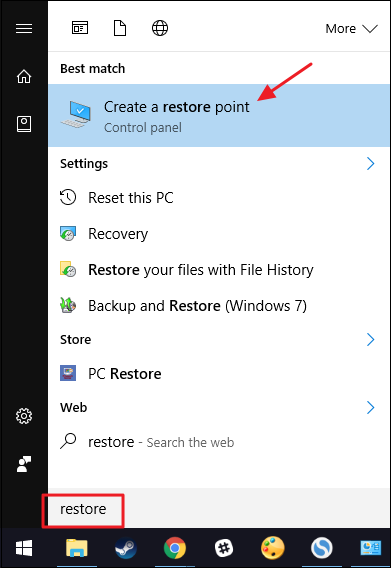
To make sure System Restore is turned on–and to enable it for specific drives–hit Start, type “restore,” and then click “Create a restore point.” Don’t worry. This doesn’t actually create a restore point; it just opens the dialog where you can get to all the System Restore options.
wsr_1
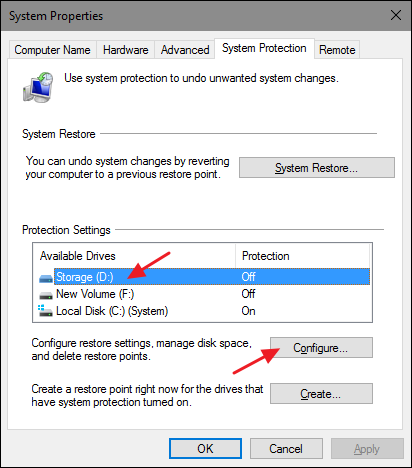
On the “System Protection” tab, in the “Protection Settings” section, you’ll see the available drives on your PC and whether protection is enabled for each drive. To turn on protection, select a drive on the list and click the “Configure” button.
(In our case, System Restore was already enabled for our C: drive. If it isn’t on your system, that’s the first drive you’ll probably want to enable it for.)
wsr_2
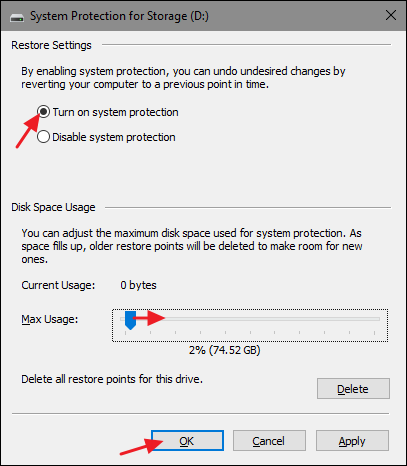
In the “System Protection” dialog that opens, click the “Turn on system protection” option, adjust the “Max Usage” slider to the amount of hard drive space you want System Restore to be able to use, and then click “OK.”
wsr_3
You can then click “OK” again to exit the System Properties dialog. Just be aware that when Windows creates a restore point (or you create one manually), System Restore will create a restore point on all the drives that have system protection enabled.

How to Create a Restore Point

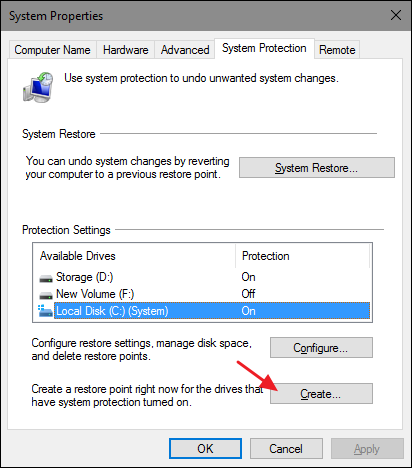
As we mentioned earlier, System Restore automatically creates restore points on a week, and whenever a major event like an application or driver installation happens. You can also create a restore point yourself whenever you want. Hit Start, type “restore,” and then click “Create a restore point.” On the “System Protection” tab, click the “Create” button.
wsr_4
Type a description for your restore point that will help you remember why you created it and then click “Create.”
wsr_5
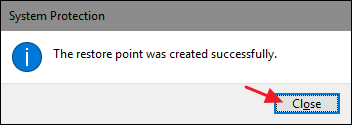
It can take 30 seconds or so to create a restore point, and System Restore will let you know when it’s done. Click “Close.”
wsr_6

How to Restore Your System to an Earlier Restore Point

Okay, so you have System Restore enabled, and you’ve been diligent about creating restore points whenever you mess with your system. Then, one fateful day, the inevitable happens–something goes wonky with your system, and you want to restore to an earlier restore point.
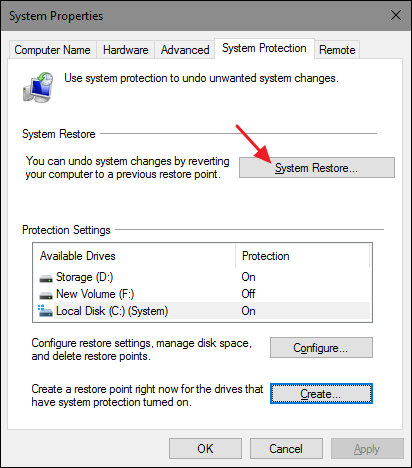
You’ll start the restore process from the same “System Protection” tab where you configure System Restore options. Hit Start, type “restore,” and then click “Create a restore point.” On the “System Protection” tab, click the “System Restore” button.
wsr_7
The welcome page of the System Restore wizard just gives you a brief description of the process. Click “Next” to go on.
wsr_8
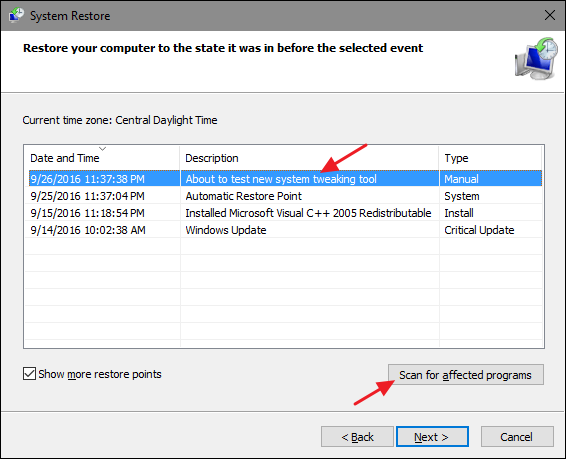
The next page shows you the available restore points. By default, the only thing showing will probably be the automatic weekly restore point and any manual restore points you’ve created. Select the “Show more restore points” option to see any automatic restore points created before app or driver installations.
Select the restore point you want–remember, the most recent working restore point is ideal–and then click “Scan for affected programs” to have System Restore detect any programs that will be uninstalled during the process.
wsr_9
System Restore will present you with two lists. The top list shows you programs and drivers that will be deleted if you restore Windows to the selected restore point. The bottom list shows programs and drivers that might be restored by the process. Again, even programs and drivers that get restored might not function properly until you do a full reinstall.
wsr_10
When you’re ready to restore, click the restore point you want to use and then click Next. Note that you can skip the scanning step and just click Next anyway, but it’s always good to see what apps will be affected before you start the process.
wsr_11
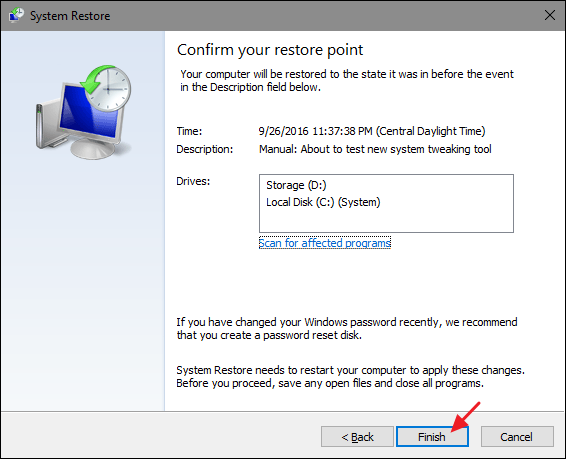
Next, you’re asked to confirm the restoration. Make sure you’ve selected the right restore point and click “Finish.”
wsr_12
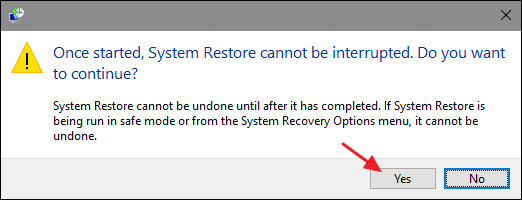
System Restore informs you that once it starts, the restore process cannot be interrupted. Click “Yes” to start.
wsr_13
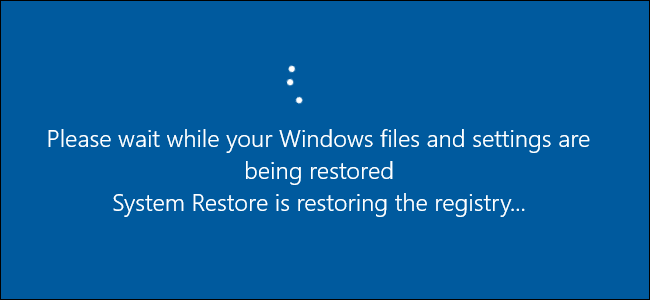
Windows will restart your PC and begin the restore process. It can take a while for System Restore to reinstate all those files–plan for at least 15 minutes, possibly more–but when your PC comes back up, you’ll be running at your selected restore point. It’s now time to test whether it resolved whatever problems you were having. And remember that System Restore creates an additional restore point right before performing the restore process, so you can always undo your actions by performing this same process and selecting that new restore point.

Other Ways You Can Fix System Problems

If System Restore doesn’t solve your problem, there are other ways you can go about addressing some of the issues System Restore is designed to solve.
If the problem was caused by a recent update, you can look at uninstalling that Windows Update or reverting to a previous “build” of Windows 10. This should fix problems that might occur due to Windows Update and issues with your specific hardware and software.